 RawGuard
Why copying isn't the same as backing up
When you drag a card's folder onto a drive in Explorer or Finder, the computer reads each file from the card and writes it to the drive. When the progress bar finishes, it means the data was sent. It doesn't mean anyone looked at what landed on the drive.
Most of the time that's fine. But a few things can quietly damage a file on the way:
- A tired card or reader. A worn card, a cheap reader or a loose USB cable can return a few wrong bytes without any error.
- A drive pulled out too soon. Drives hold some data in memory before writing it. Unplug before it's written and the last files can be incomplete.
- A failing drive. A drive with bad areas can accept a file and give back something different later.
The result is the photo every photographer dreads: a RAW that opens with its bottom half grey or striped, found weeks later, after the card was formatted and reused.
What verification actually checks
Verification means reading the copy back from the drive and comparing it with the original, file by file. If one byte is different, the file is copied again or flagged. A copy that passes is known to match the card.
There's a catch worth knowing. Computers keep recently written files in memory, so a careless check can end up comparing the file in memory with itself and never touch the drive. A proper check reads from the drive itself.
Is matching file count and size enough?
No. A damaged file is almost always exactly the same size as a good one. Matching counts tell you nothing went missing. They don't tell you every file is intact.
Checksums, in plain words
A checksum is a short fingerprint worked out from every byte of a file. Change a single byte and the fingerprint changes completely. It looks like this:
3f2a9c71e0b84d55a1c6e2f09b7d4e18 *DSC_4127.NEF
Save a list of fingerprints next to the photos and you can check them again at any time, years later, on any drive the shoot was copied to. If a fingerprint no longer matches, that file has been damaged since it was backed up, and you know to restore it from the other drive.
The most common kind is MD5. It's no longer used for security, but it's very good at noticing accidental damage, and every computer has tools that read an MD5 list.
How many copies: the 3-2-1 rule
The rule photographers and archivists use is simple:
- 3Three copies of every shoot.
- 2On two different drives, so one failure can't take both.
- 1One kept somewhere else: another building or the cloud, safe from fire, flood and theft.
On the night of a wedding, that usually means the card plus two drives. The card counts as a copy until it's formatted, which is why the next question matters most.
When is it safe to format the card?
Only when you can say yes to all of these:
- Every file is on two separate drives, not two folders on the same drive.
- Both copies have been verified, read back and compared with the card.
- The number of files matches what the camera shot, including video.
- If your camera wrote to two cards at once, you're keeping the second card until the client has their photos.
Then format the card in the camera, not on the computer. The camera sets the card up the way it expects, which avoids errors on the next shoot.
Doing it by hand
You don't need special software to back up properly. It just takes longer:
- Copy the card to your first drive, into a folder named for the shoot.
- Copy the card again to your second drive. Copy from the card, not from the first drive, so a bad first copy isn't repeated.
- Make a checksum list of the card's files, and check both copies against it with a checksum tool.
- Open a handful of RAWs from each drive, especially the last ones copied.
- Eject both drives properly before unplugging them.
It works, but after a ten-hour wedding it's easy to skip a step, and step 3 is the one that usually goes.
How RawGuard does it
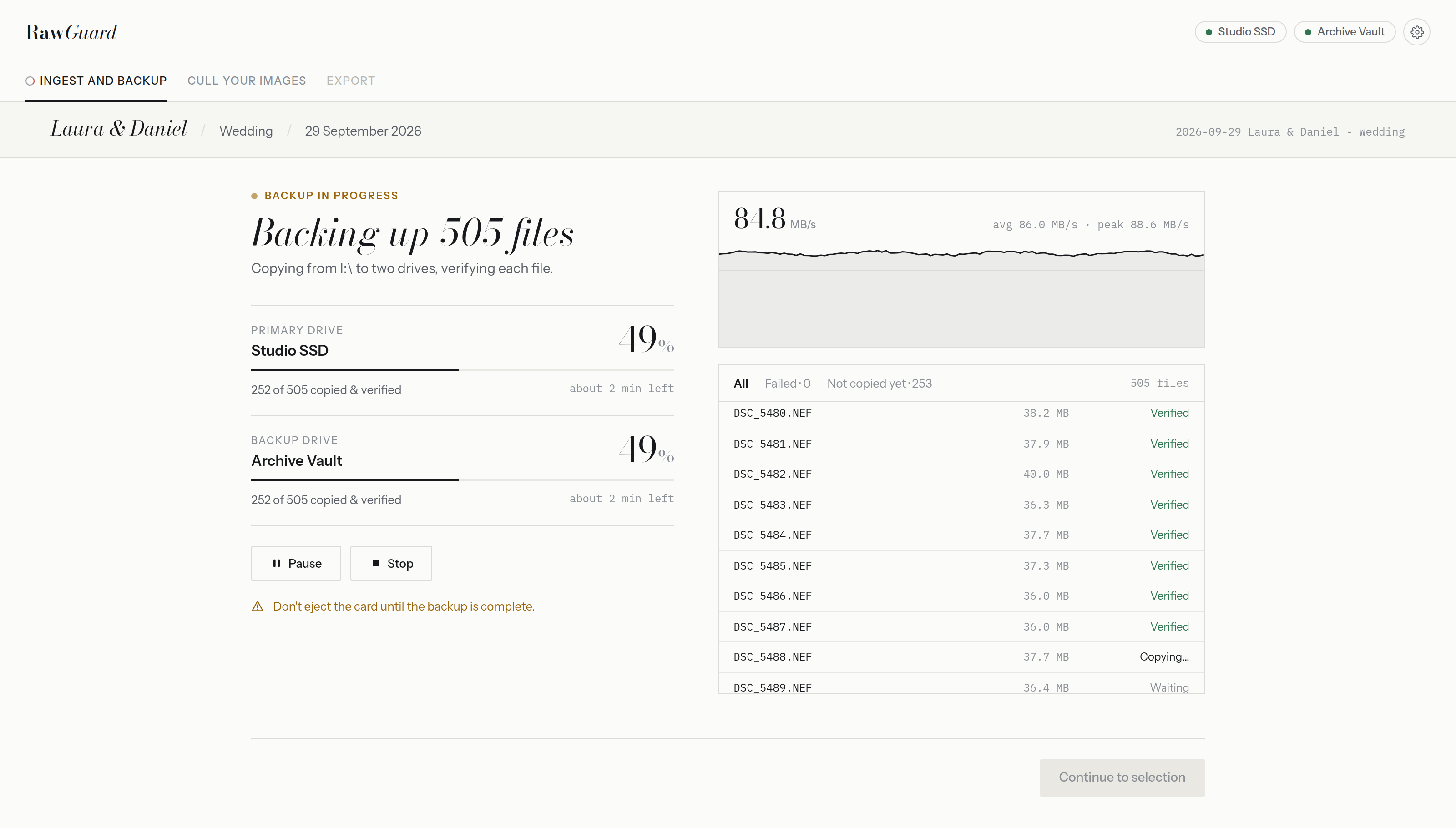
RawGuard was made for exactly this routine. You name the project, insert the cards and press Start backup. Then:
- Each file is read from the card once and written to both drives at the same time, with an optional third copy.
- Every copy is read back from its drive and compared. In Thorough mode the card is read a second time too.
- A checksum list (
rawguard-checksums.md5) and a backup report are saved in the project folder on every drive. - RawGuard checks the shoot fits on both drives before it starts, and shows if a drive is reporting a health problem.
- Nothing on the card is ever changed or deleted. When it's done, an Eject card button appears.
Questions
- Does verifying slow the backup down?
- A little, because every copy has to be read back. On a fast SSD it's usually minutes, not hours, and it's the only way to know the copy is good.
- Can I edit straight from the backup drive?
- Yes, but keep the second drive as a backup that you don't work from. If the working drive fails mid-edit, the other one is untouched.
- Is a cloud backup enough?
- It's a great third copy, kept somewhere else. On the night itself, uploading a whole wedding takes too long to be the copy you rely on before formatting.